
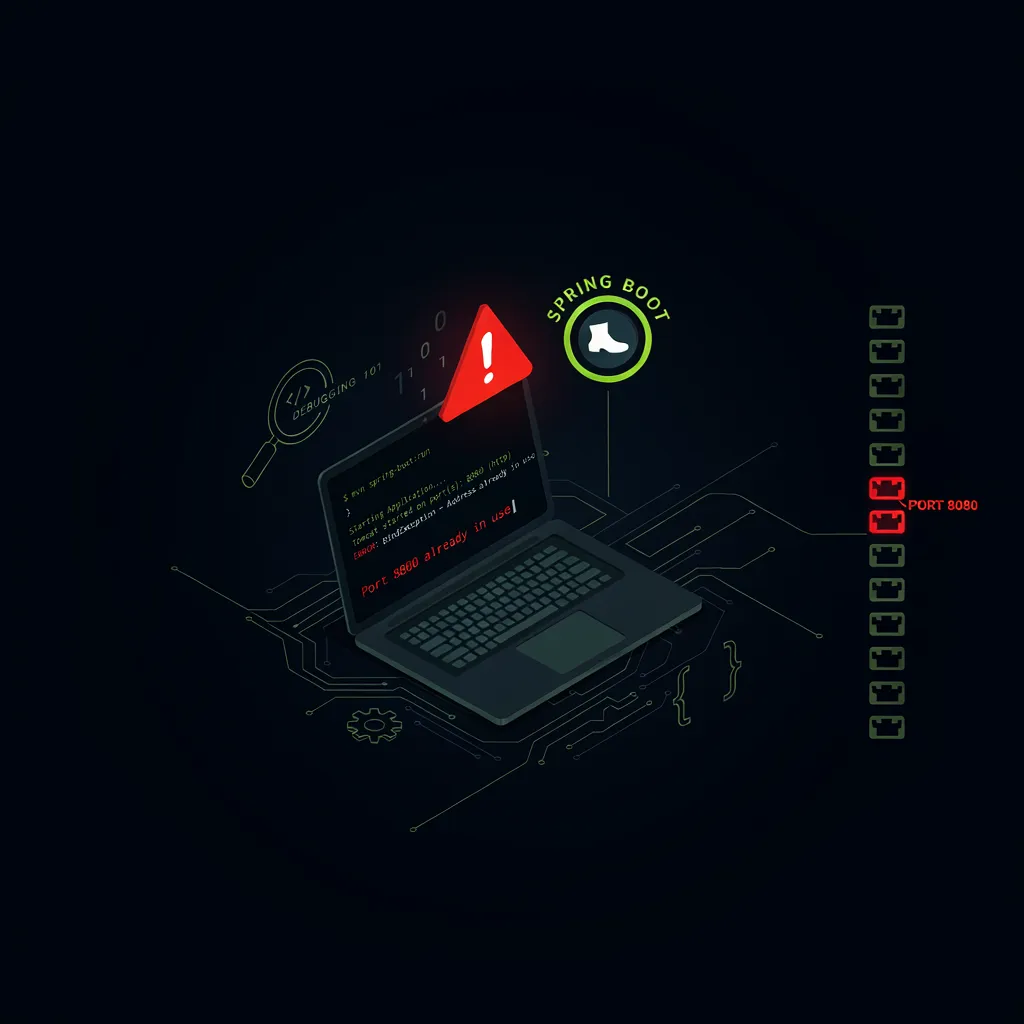
One of the most common errors Spring Boot developers face is:
Web server failed to start. Port 8080 was already in use
This error usually appears when your Spring Boot application starts successfully, but the embedded web server (Tomcat/Jetty/Undertow) cannot bind to port 8080.
In this guide, you’ll learn:
- What this error actually means
- Why it happens in real projects
- How to diagnose it correctly
- Production-safe ways to fix it
This explanation works for Windows, macOS, Linux, Docker, and production servers.
What Does “Port 8080 Already in Use” Mean?
Spring Boot applications run an embedded web server.
By default, it tries to start on port 8080.
This error means:
- Another process is already listening on port 8080
- Or a previously running application did not shut down properly
- Or a container/environment is already using that port
Spring Boot cannot share ports, so startup fails.
To understand how and when the web server starts, you can refer to: how spring boot application starts startup flow explained
Common Real-World Causes
1. Another Spring Boot App Is Running
You may have:
- Started the app twice
- Left a previous instance running in the background
- Run the app from IDE and terminal simultaneously
This is the most common cause during development.
2. Port Used by a Different Application
Port 8080 is widely used by:
- Other Java applications
- Docker containers
- Local servers (Tomcat, Jenkins, Kafka UI, etc.)
3. Zombie or Hanging Process
Sometimes the JVM crashes but the OS does not release the port immediately.
This happens due to:
- Forced shutdowns
- IDE crashes
- OS-level TIME_WAIT states
4. Docker or Container Port Mapping
If you’re using Docker, the container may already be mapping port 8080 to your host machine.
For environment-related configuration differences, see: spring boot configuration and profiles explained beginner to production guide
How to Identify What Is Using Port 8080
On Windows
netstat -ano | findstr :8080Then find the process:
tasklist | findstr <PID>On macOS / Linux
lsof -i :8080This command directly shows which process owns the port.
Using Docker
docker psCheck whether any container is exposing port 8080.
How to Fix the Error (Recommended Solutions)
Option 1: Stop the Process Using the Port
If the process is safe to stop, terminate it.
Windows:
taskkill /PID <PID> /FmacOS / Linux:
kill -9 <PID>Restart your Spring Boot application after this.
Option 2: Change the Server Port (Best Practice)
Instead of fighting for port 8080, change it.
application.properties
server.port=8081application.yml
server:
  port: 8081
This approach is recommended for production environments where multiple services run on the same server.
Option 3: Use Environment-Based Ports (Production Safe)
In real systems, ports vary by environment.
Example:
server.port=${SERVER_PORT:8080}This allows:
- Local: default 8080
- Production: controlled by environment variables
Option 4: Fix Docker Port Conflicts
Check Docker port mapping:
docker run -p 8081:8080 your-imageOr stop the conflicting container:
docker stop <container-id>Why This Error Happens Even When the App “Looks Stopped”
This is confusing for many developers.
Possible reasons:
- JVM did not shut down cleanly
- OS still holds the socket
- Docker container still running
- IDE background process alive
Spring Boot is strict — if the port is busy, startup fails.
Production Debugging Tip
When debugging startup issues related to ports or environment, understanding bean initialization and startup phases helps a lot:
how spring boot creates beans bean lifecycle simplified for production
Summary
- Port 8080 is the default Spring Boot server port
- Only one process can bind to a port at a time
- Use OS tools to identify conflicts
- Prefer environment-based configuration in production
- Docker frequently causes hidden port conflicts
Once you understand this, the error becomes easy to fix and avoid.
Frequently Asked Questions (FAQs)
Why does this error occur even after stopping the app?
The JVM or OS may not have released the port yet. Zombie processes or Docker containers are common causes.
Can I use ports other than 8080 in Spring Boot?
Yes. You can use any free port using server.port.
Is changing the port a bad practice?
No. In fact, it’s recommended in production systems with multiple services.
Does this error indicate a Spring Boot bug?
No. This is an OS-level networking constraint, not a framework bug.
Related Spring Boot Fixes
- Spring Boot startup flow explained
how spring boot application starts startup flow explained - Spring Boot profiles and configuration
httpsspring boot configuration and profiles explained beginner to production guide - Spring Boot bean lifecycle (production view)
how spring boot creates beans bean lifecycle simplified for production
Pingback: Fix Spring Boot Not Starting After Java Upgrade – Causes & Solutions - Spring Boot Fixes